Here’s a detailed description of Windows Subsystem for Linux (WSL) — what it is, how it works, and why it’s useful:
✅ What is Windows Subsystem for Linux (WSL)
Windows Subsystem for Linux (WSL) is a Microsoft feature that allows you to run Linux distributions natively on Windows 10 and Windows 11 without using a traditional virtual machine. (microsoft.com)
First introduced in 2016, it has evolved through WSL 1 and WSL 2.
WSL is designed for developers, IT professionals, and power users who need Linux tools alongside Windows.
⚙️ Key Features
Run Linux Natively on Windows
Run Linux command-line tools, utilities, and apps directly on Windows.
Compatible distributions include Ubuntu, Debian, Fedora, Kali Linux, openSUSE, and more.
Two Versions: WSL 1 and WSL 2
WSL 1: Translates Linux system calls to Windows calls — lightweight, fast for many tasks, but limited in full kernel support.
WSL 2: Uses a lightweight Hyper-V virtual machine with a full Linux kernel, offering full system call compatibility, better performance, and support for Docker containers.
Integration with Windows
Access Windows files from Linux and Linux files from Windows seamlessly.
Use Linux tools like grep, sed, and awk alongside Windows applications.
Run GUI Linux apps on Windows 11 via WSLg (WSL GUI).
Networking & Development Tools
Support for Docker Desktop and containerized workflows.
Ability to run web servers, databases, and other Linux-based services locally.
Integrates with Visual Studio Code for seamless development with Linux tooling.
Performance & Efficiency
Minimal overhead compared to traditional virtual machines.
Supports GPU acceleration for AI/ML workloads (in WSL 2 with compatible hardware).
✅ Why It’s Useful
Developers: Build, test, and deploy Linux applications on Windows without dual-booting.
Sysadmins: Manage Linux servers using native command-line tools.
Students and Learners: Practice Linux commands, scripting, and software development on a Windows PC.
Gaming & AI: Run Linux tools for AI/ML development with GPU acceleration without leaving Windows.
⚠️ Limitations
Some low-level Linux apps may require WSL 2 for full compatibility.
Requires Windows 10 (2004+) or Windows 11.
Not intended for full-scale Linux desktop replacement (though GUI apps are supported).
GPU acceleration and advanced networking features need compatible hardware and drivers.
Here’s a breakdown of Windows 11 Installation Assistant — what it is, how it works, and when (and when not) you might want to use it.
✅ What is Windows 11 Installation Assistant
Windows 11 Installation Assistant is an official tool from Microsoft that helps you upgrade an existing Windows 10 PC to Windows 11 in a simplified, guided way. (Microsoft Support)
It’s designed for users whose PC meets the hardware/firmware requirements for Windows 11; it performs compatibility checks and — if everything matches — will download and install Windows 11 for you. (Microsoft Support)
⚙️ How It Works — Steps & Behavior
When you run Installation Assistant:
The tool first checks whether your PC meets the requirements (CPU, RAM, storage, TPM/UEFI, etc.). If not — it informs you and stops. (Microsoft Support)
If your PC is compatible, you click “Accept and Install”, and the tool will:
Download the needed Windows 11 files from Microsoft’s servers. (MakeUseOf)
Begin the upgrade process automatically, carrying over your files and most settings/apps from Windows 10. (MakeUseOf)
Restart the PC one or more times to finalize the installation. (Microsoft Support)
Because it downloads directly and does the installation in‑place, you do not need a USB drive, ISO file, or manual media creation — everything is handled by the tool. (Geeky Buddy)
✅ Pros — Why Use It
Simplicity: Very easy for typical users — just run it and follow prompts. No need to deal with USB, ISOs, or manual setup.
Official and up‑to‑date: Since it’s from Microsoft, you get genuine, latest Windows 11 build with appropriate updates and support.
Keeping your data & apps: Designed to upgrade from Windows 10 while retaining your files, apps, and most settings (not a full clean install). (MakeUseOf)
Automatic compatibility checking: It will warn you and stop if your PC isn’t compatible — avoiding wasted time or failed installs.
⚠️ Cons / Things to Watch Out For
Only works if PC meets requirements: If your PC lacks TPM 2.0, UEFI, enough RAM/space, or has incompatible CPU/firmware — it will refuse. (Microsoft Support)
May take a while: Download + install + restarts can take hours — so you need to be sure you can spare the time and that PC stays powered and connected to internet. (MakeUseOf)
Not a “fresh install” option: This tool upgrades your existing system. If you need a clean install (wipe + fresh system), you’ll need other tools (e.g. media creation / ISO / USB).
Sometimes upgrade hangs or stalls: There are user reports that in rare cases the install may get stuck (e.g. around 99 %) or fail — which may require troubleshooting or a different installation method. (Microsoft Q&A)
🎯 When You Should Use It (or Skip It)
Good idea to use if:
You have a Windows 10 PC that meets Windows 11 requirements, and you want a quick, easy upgrade without losing data.
You don’t want to manually deal with bootable media or more complicated installation processes.
You prefer staying on officially supported, up‑to‑date, and secure OS (especially now that support for Windows 10 ended).
You might skip it / consider alternatives if:
Your PC doesn’t meet requirements (TPM, UEFI, disk space, etc.).
You want a clean install (fresh OS, no old garbage) — in that case, using an ISO + USB (or official media tool) is better.
You experienced issues with the installer (it hangs, fails, or you had compatibility warnings).
Here’s an overview of Windows 11 — what it is, what it offers, what it requires, and what to consider in 2025 (especially if you think about upgrading from older Windows versions).
✅ What is Windows 11
Windows 11 is the current major desktop operating system from Microsoft — successor to Windows 10. (Microsoft Support)
It was first released to the public in October 2021, and is intended to be Microsoft’s main supported Windows edition going forward. (Microsoft Support)
Windows 11 aims to provide a more modern user interface, improved security, updated features, and better support for newer hardware and technologies. (Microsoft Learn)
⚙️ Key Features & What’s New (vs older Windows)
Windows 11 brings a number of improvements and changes compared to older versions:
Modernized interface and usability changes — refreshed design, improves user experience, and integrates well with modern workflows and hardware. (Microsoft)
Support for modern hardware & gaming technologies:
Capabilities like DirectStorage (for faster game loading) and DirectX 12 Ultimate — provided compatible SSD and GPU — which benefit gamers and heavy‑duty applications. (Microsoft)
Better security features, management of updates, compatibility with newer chips, firmware security standards, etc. (Microsoft)
Ongoing Support & Updates — Windows 11 receives regular monthly security updates, and feature updates periodically, which helps keep the system secure, stable, and current. (Microsoft Learn)
Better compatibility for modern workflows — newer versions of applications, drivers, and tools tend to target Windows 11 (or at least ensure full support on it), which helps ensure long-term compatibility.
📦 System Requirements for Windows 11 (Minimum & What to Check)
For a PC to run Windows 11 properly, it must meet certain hardware/firmware requirements. (Microsoft)
Security module: TPM (Trusted Platform Module) version 2.0 is required (or firmware-based equivalent). (TECHCOMMUNITY.MICROSOFT.COM)
Notes on extra features:
Some of Windows 11’s advanced features (e.g. High‑end gaming, virtualization, certain “Copilot+ PC” experiences, 5G support, Auto HDR, etc.) may have additional requirements, like compatible hardware (NVMe SSD, supported GPU, USB drive for BitLocker, etc.). (Microsoft)
If your PC fails to meet the required criteria and you force‑install Windows 11, you might run into stability, compatibility, or security support issues. (Microsoft Support)
🎯 Who Should Use Windows 11 — Pros & Use Cases
Given your background (you use PC for gaming and general tasks), Windows 11 is particularly well‑suited if you want:
A modern, secure, and supported OS — especially now that older OS versions are no longer receiving updates from Microsoft, staying on Windows 11 helps you avoid security risks.
Better performance and future‑proofing — for newer games, software, and hardware (SSD, modern GPUs), Windows 11 tends to provide better support and optimizations.
Long‑term compatibility and updates — since many developers are optimizing for Windows 11 (or even dropping support for older versions), using 11 ensures you get updates, support, and new features.
Peace of mind regarding security and features — as Windows 11 continues to receive monthly security patches and feature updates. (Microsoft Learn)
⚠️ What to Consider / Possible Downsides
Because Windows 11 has stricter hardware requirements, older PCs may not qualify. If your machine lacks TPM 2.0, UEFI, enough RAM/storage, or a compatible CPU/GPU — upgrade may not be possible without hardware changes. (TECHCOMMUNITY.MICROSOFT.COM)
Some advanced features or future “Copilot+ PC” experiences may require more powerful hardware — meaning a minimal install might run, but you won’t get the full benefit. (Microsoft)
If you rely on very old software, hardware, or custom setups — compatibility could be an issue (though many older apps still run under Windows 11).
Upgrading requires backup, and in some cases you might need to check for driver/hardware compatibility (especially if PC is several years old).
🔁 Upgrading to Windows 11 — What You Should Know
If you’re on an older Windows version (e.g. Windows 10), upgrading to Windows 11 is free, as long as your PC satisfies the minimum requirements. (Microsoft Support)
Before upgrading, it’s recommended to back up your important files (in case anything goes wrong during the upgrade). (Microsoft)
After upgrade, you get ongoing support, future feature updates, and access to the latest security patches and functionality. (Microsoft Learn)
✅ My Take: Should You Use Windows 11 (Given Your Background)
Since you use a PC for gaming, possibly run various applications (games, mods, tools), and value a stable system:
Yes — Windows 11 is a strong choice if your hardware meets requirements. It’s more future‑proof, receives updates, and supports modern gaming features.
Check your hardware first: make sure CPU, RAM, storage, firmware (UEFI/TPM) and GPU are compatible. Upgrading an old PC may not be worth the trouble unless you plan to buy new hardware.
Back up important data before upgrading — especially if you have custom setups, mods, or non‑standard software.
Designed to run on desktops, laptops, tablets, and hybrid devices — it is a general‑purpose OS that supports a wide range of hardware, software, and user needs. (Wikipedia)
🔧 Key Features — What Windows 10 Brings
Windows 10 introduced many improvements over earlier Windows versions: (Digital Unite)
Updated Start Menu and interface: A more modern and flexible Start menu (combining traditional menu and live tiles), a taskbar, and a redesigned look that works well with both mouse/keyboard and touch/tablets. (Digital Unite)
Multitasking and virtual desktops: Ability to create multiple virtual desktops (workspaces) and switch between them, which helps organize windows and tasks efficiently. (Wikipedia)
Improved system for apps and data: It supports “universal apps,” allowing apps to run across different types of devices (desktop, tablet, etc.) with a shared codebase. (Wikipedia)
Modern browser & web standards: Originally shipped with a new browser, Microsoft Edge (later the Chromium‑based Edge) instead of the older Internet Explorer — more secure and faster. (Wikipedia)
Security and system support: Built-in support for modern hardware standards (graphics with DirectX, drivers, better security models, compatibility with new apps) — making it a flexible and relatively future‑proof environment for both everyday use and gaming. (Microsoft)
Flexible editions — Windows 10 comes in different editions depending on your needs: Home (for regular users), Pro (for power users / small business), plus Enterprise / Education for business/organization environments. (Wikipedia)
📦 System Requirements & Compatibility
According to official specifications for Windows 10: (Microsoft)
Minimum (bare minimum)
Recommended for good use
CPU: 1 GHz or faster (or SoC)
—
RAM: 1 GB (32‑bit) or 2 GB (64‑bit)
For comfortable use, more RAM recommended (4 GB or more)
Disk space: 16 GB (32‑bit) or 32 GB (64‑bit)
—
Graphics: Compatible with DirectX 9 (or newer) + WDDM driver
For games / heavier apps: modern GPU & drivers
These are minimal — for a smooth experience (especially for games or heavy tasks), better hardware is recommended. (Microsoft)
⚠️ What’s Changed in 2025 — End of Support
Important recent development: Microsoft ended mainstream support for Windows 10 on October 14, 2025. (Windows Central)
After this date, Windows 10 will no longer receive regular security updates, feature updates, or technical support (for the standard Home/Pro/Education/Enterprise editions). (Windows Central)
That means continuing to use Windows 10 becomes riskier over time — new security vulnerabilities will not be patched, and third‑party software (apps, games) may increasingly drop support for Windows 10. (WIRED)
Users who want to maintain security may need to upgrade to Windows 11 (if hardware supports it), or consider other alternatives (e.g. switching to a different OS). (Tom’s Guide)
🎯 Is Windows 10 Still Worth Using — For Someone Like You
Given that you use PC for gaming and general tasks:
Pros:
Windows 10 remains familiar, flexible, lightweight compared with some newer OS — good for older PCs or for users who like simplicity.
It supports a vast library of software and games (especially older ones) — great for PC games, modding, retro software, etc.
If hardware is limited (older PC), Windows 10 may run more smoothly than heavier OS.
Cons (in 2025):
No new security or feature updates — over time, increased risk of vulnerabilities and compatibility issues.
New games or software may start requiring newer OS version (Windows 11 or future).
If you value long‑term security / support / modern features (especially for internet, gaming, updates), it’s safer to plan upgrading (OS or PC).
Here’s a description of the computer/mobile application WiFi Mouse — what it is, how it works, and when (or why) you might want to use it.
✅ What is WiFi Mouse
WiFi Mouse is an app (for Android / iOS, etc.) that transforms your phone or tablet into a wireless mouse, keyboard, and trackpad for your computer (PC / Mac / Linux). (WiFi Mouse)
To work, it requires also installing a small “server” program on your computer. Once both phone and computer are connected to the same WiFi network, your phone becomes a remote control input device for the computer. (Uptodown)
🎮 What You Can Do With It — Features
With WiFi Mouse you get a variety of remote‑control and input features:
Mouse cursor & trackpad control — you can move the cursor by sliding your finger on the phone screen, simulate left/right clicks, drag‑and‑drop, scroll (with gestures), etc. (WiFi Mouse)
Full keyboard input — you can use the phone’s keyboard (or an on‑screen keyboard) as your PC’s keyboard, including support for shortcuts (e.g. Ctrl+C, Alt+Fn, etc.). (WiFi Mouse)
Multi‑touch & gesture support — gestures like two‑finger scroll, tap, drag, etc., to mimic advanced trackpad behavior. (WiFi Mouse)
Remote media and presentation control — control media players, video streaming apps, presentations (e.g. PPT), and even navigate your computer remotely — useful if you’re controlling media from your sofa while PC is connected to a TV, or giving a presentation. (WiFi Mouse)
Shut down / sleep / restart / system control remotely — you can perform power actions (shutdown, sleep, log off, etc.) on your computer via your phone. (Brainasoft)
Remote desktop / remote input support — beyond mouse + keyboard, WiFi Mouse may allow remote desktop‑like control depending on configuration (though for full screen sharing some limitations exist). (WiFi Mouse)
👍 Why WiFi Mouse Can Be Useful (Especially for You)
Given that you use a PC (and enjoy gaming, working with files, etc.), WiFi Mouse can be especially handy when:
Your PC is connected to a screen away from your couch / bed (e.g. media center, living‑room TV) — you can control it from phone without needing a physical mouse/keyboard.
Your physical mouse or keyboard is broken or inconvenient — the phone becomes a backup input device.
You want a flexible, portable “remote control” option for presentations, video playback, media control, or even quick PC tasks without physically being at the PC.
You sometimes multitask — use phone for typing or navigating while PC runs games, downloads, or other tasks — no need to switch devices physically.
⚠️ What to Watch Out For / Limitations
Both devices (phone and PC) must be on the same WiFi network. If network is unstable or not available, WiFi Mouse won’t work. (Uptodown)
You need to install the server component on PC — without that, connection won’t work. (WiFi Mouse)
Responsiveness / latency may vary depending on WiFi network quality — it may not fully replace a physical mouse for very fast-paced gaming or precision tasks.
For some advanced controls (multi‑touch, gestures, media controls) configuration may be needed, and some features may only work with certain OS or remote-server versions.
Here’s a description of WhyNotWin11 — what it is, how it works, and when / why you might use it (or avoid it).
✅ What is WhyNotWin11
WhyNotWin11 is a small, open‑source utility for Windows whose purpose is to check whether your PC meets the requirements to install Windows 11. (WhyNotWin11)
Unlike some official “PC check” tools, WhyNotWin11 gives detailed, per‑component feedback: it shows exactly which requirements pass and which fail — not just a generic “yes/no.” (Windows Noticias)
It’s distributed as a portable executable (.exe) — so you don’t need to “install” it in the usual sense. You download the file and run it directly (preferably as administrator). (Uptodown)
⚙️ What It Checks — How WhyNotWin11 Works
When you run WhyNotWin11, it performs a series of checks corresponding to the known requirements for Windows 11. (Windows Noticias) Here are the main criteria it verifies:
Requirement
What it checks
CPU architecture / generation / cores / frequency
Confirms you have a 64‑bit CPU, with sufficient cores (≥2) and clock speed. (WinkeyFinder)
RAM
Checks you have at least the minimum required RAM. (مداد الجليد)
Storage / free disk space
Ensures you have enough disk space free / proper disk partitioning (e.g. GPT vs MBR) if needed. (Windows Noticias)
Disk partition type & Boot mode
Verifies if boot method (UEFI / Secure Boot) and partition type meet requirements. (DeepWiki)
Graphics / DirectX / WDDM / Display driver support
Checks compatibility of the GPU / display driver (DirectX version, WDDM version etc.) with Windows 11. (WinkeyFinder)
TPM and security features (e.g. TPM 2.0, Secure Boot)
Confirms if a TPM module (or firmware TPM) is present/enabled, and whether Secure Boot is supported/enabled — often a major requirement blocker. (Beebom)
After scanning, WhyNotWin11 displays a list of “green / red / yellow” indicators (pass / fail / unclear) — letting you know exactly which requirement(s) your PC fails to meet (if any). (Windows Noticias)
✅ Benefits: Why Use WhyNotWin11
Clear, detailed feedback — More informative than many “compatibility checkers” that only say “yes/no.” This helps you know precisely what component may need upgrading or enabling (e.g. enable TPM, switch to UEFI boot, get more RAM).
Portable, simple, no installation needed — just download and run — good if you want a quick check without installing extra software.
Widely used and kept up-to-date — the project is open‑source and periodically updated to reflect changes in compatibility lists. (Windows Noticias)
Good for older systems or non‑standard setups — helps you identify whether an older PC can reasonably upgrade to Windows 11 or whether key requirements like TPM / secure boot / disk partition type are missing/incorrect.
⚠️ Limitations & What to Watch Out For
WhyNotWin11 does not “guarantee” that if you pass all checks — Windows 11 will install or run perfectly. It only verifies known formal requirements. Actual install success may still depend on drivers, BIOS support, peripherals, or manufacturer restrictions. Some users report that even with “all green,” the official update mechanism may still block install. (reddit.com)
Because it is a third‑party, open‑source tool (not from Microsoft), browsers or security software (e.g. SmartScreen, antivirus) may flag it as “unsigned” or “potentially harmful.” That doesn’t necessarily mean it’s malicious, but you must ensure you downloaded the legitimate version (preferably from the original repository). (Notebookcheck)
The check for some components — like DirectX / graphics driver capability — can sometimes be “inaccurate” or incomplete in edge cases. (Windows Noticias)
It doesn’t perform or guarantee any fixes — if the check fails, you still need to manually upgrade/enable hardware or settings (e.g. enable TPM, change partition style, upgrade RAM, etc.) if possible.
🧑💻 When / Who Should Use WhyNotWin11 (Especially Considering You)
Given that you use a PC (likely for gaming and general use), WhyNotWin11 can be helpful if:
You consider upgrading to Windows 11 and want to check compatibility before you try — especially useful if PC’s hardware is a few years old, or you suspect settings like TPM, UEFI, or disk partition may block upgrade.
You want a quick and easy tool without complex setup — since the utility is portable, lightweight, and easy to run.
You want detailed diagnostics to pinpoint compatibility issues (rather than vague “not compatible” messages).
Here’s an overview of the computer / mobile application WeatherBug — what it does, how it works, and what to be aware of if you use it.
✅ What is WeatherBug
WeatherBug is a weather‑forecast service / application. It started as a desktop application, but now exists mainly as a mobile/web app giving live and forecast weather data. (Wikipedia)
It gathers data from a large network of weather‑stations, sensors and observation networks to deliver hyper‑local weather information (current conditions, radar, lightning, etc.). (Laptop Mag)
🌤️ What It Offers — Features & Capabilities
With WeatherBug you get a variety of weather‑related information and tools, including:
Current weather, hourly and multi‑day forecasts — temperature, humidity, wind, precipitation chance, and more ➝ handy for daily planning. (BrightHub)
Live and interactive maps / radar / weather maps — view radar, storm systems, wind, lightning, precipitation patterns on a map; good for tracking approaching weather or storms. (NowSecure)
Severe weather & lightning alerts / storm warnings — detects lightning and dangerous weather developments, and notifies users if storms, heavy rain or hazards are nearby. (Best Mobile App Awards)
Environmental & lifestyle info — besides standard weather, it can show air‑quality, pollen counts, UV index, and possibly other indicators (useful for allergy sufferers or anyone monitoring air‑quality/health) depending on region. (Toxigon)
Customization options — ability to choose units (e.g. Celsius/Fahrenheit, different wind units), and configure alerts and map layers to suit your preferences. (Kfanhub)
Because of these features, WeatherBug can help with: everyday planning (dress, commute), outdoor activities (hikes, trips), health‑sensitive needs (pollen, air quality), and weather safety (lightning/storm warnings).
⚠️ Things to Watch Out For — Criticisms & Drawbacks
The free version of WeatherBug uses advertisements — some users and reviewers label it “ad‑supported,” which can lead to occasional pop‑ups or intrusive ads. (Pchell)
There have been versions (especially on desktop / earlier Windows) where some users complained about the tool acting like “adware” — installing unwanted toolbars or making changes to system/browser settings (though the official stance of WeatherBug denies spyware behavior). (UNSW Mathematics)
Some features (like radar, lightning alerts, maps) may have better coverage or reliability in certain regions than others — depending on how dense the weather‑station network is near your location. (Laptop Mag)
🎯 Who It’s Good For (and When It’s Useful)
Given your context (you live in Zarqa, Jordan; but you might travel or want to check weather for games, activities, etc.), WeatherBug can be especially useful if:
You want up‑to‑date weather info — to plan daily tasks, monitor rain, wind, temperature changes, storms.
You care about air quality / pollen / health‑related environmental data (especially if sensitive to dust or allergies).
You plan outdoor activities (hikes, outings, travel) and want advanced notice of severe weather or optimal conditions.
You travel internationally or want to check weather outside your hometown — because WeatherBug supports global weather coverage (though detail may vary by region).
🔎 What to Double‑Check / Consider Before Using
If you use it for serious planning, verify critical alerts with another local reliable source, especially for severe weather.
If you dislike ads or toolbars, consider whether you want the free version — being ready to deal with ad‑support or pay for ad‑free version if available.
If you care about privacy / system cleanliness — avoid accepting bundled installations or extra toolbars (common criticisms in some past desktop‑version reports).
Here’s an overview of the computer application UltraSearch — what it is, how it works, and when/why you might want to use it.
✅ What is UltraSearch
UltraSearch is a desktop tool for Windows whose main purpose is to help you find files and folders on your drives — much faster and more reliably than the default Windows search. (FileEagle.com)
It’s developed by JAM Software, and there is a free version (as well as a paid/“Pro” version) — but even the free edition handles basic file‑search tasks well. (JAM Software)
⚙️ How UltraSearch Works — Key Features & Mechanics
UltraSearch doesn’t rely on background indexing (unlike Windows Search or many other search tools). Instead, it reads directly from the file system’s Master File Table (MFT) on NTFS‑formatted drives — the MFT keeps metadata about all files/folders, letting UltraSearch locate files almost immediately. (TechBloat)
Because of its MFT-based approach, search results appear in real time, often as soon as you start typing — even on large drives or external storage. (FileEagle.com)
UltraSearch supports wildcards and regular expressions, so you can search using patterns (e.g. *.mp3 or report_??.docx) to quickly find groups of files.
You can filter results based on criteria like file type (documents, media, system files), file size, creation/modification date, and more. This helps narrow searches when you have many files.
The program shows useful metadata in search results: file size, creation/modification/access dates, full path, etc. You can open files directly, copy paths, or use the regular context menu options. (gHacks Technology News)
UltraSearch allows exporting search results (e.g. to CSV, text, Excel, etc.), which can be useful if you need to catalog, archive, or work with lists of files. (FileEagle.com)
There is a portable version (no installation needed), which makes it handy for technicians, USB‑use, or quickly running searches on computers where you don’t want to install new software. (FileEagle.com)
👍 What It’s Good For (When You Should Use It)
UltraSearch shines especially when:
You have large drives (lots of files), or multiple drives — Windows’ built-in search may struggle or become slow, while UltraSearch remains fast.
You turned off Windows indexing (or use a system where indexing is disabled) — UltraSearch works effectively without any prior index.
You frequently look for specific file types (e.g. docs, code files, media) using patterns or wildcards.
You want quick file‑finding: you don’t need to wait, and you want results as soon as you type.
You need a portable, lightweight tool — e.g. using a USB stick on different PCs, or periodically scanning external disks.
⚠️ Limitations / What UltraSearch Doesn’t Do (Or Where It Might Be Less Convenient)
UltraSearch only supports NTFS-formatted drives. So if you have drives formatted FAT32, exFAT or other filesystems, it may not work or may have limited support. (TechBloat)
By default, UltraSearch focuses on file names and metadata. It doesn’t always perform full content‑inside‑file searches (i.e. text inside documents), or such functionality might be limited or available only in more advanced versions.
It’s a Windows-only tool — so if you use another OS (Linux, macOS), it’s not applicable. (UltraSearch)
🧑💻 Who UltraSearch Is For (Given Your Background)
Since you appear to use a PC, and also have interests in games and probably many files (games, mods, saves, documents, etc.), UltraSearch could be particularly useful for you:
Helps you quickly locate game files, mod folders, documents, or other resources scattered across drives.
Speeds up searches when you have many files — no waiting long times for search results.
Lightweight and likely doesn’t interfere with your games or consume many system resources.
Here’s a description of the computer application TypingClub — what it is, how it works, and what you can expect if you use it.
✅ What is TypingClub
TypingClub is a web‑based typing tutor / keyboard‑training platform — it helps you learn “touch typing” (typing using all fingers without looking at the keys). (TypingClub)
It is part of a broader educational platform (under EdClub), used by millions of students and many schools worldwide. (TypingClub)
You don’t need to install anything — it runs entirely in a web browser. (TypingClub)
✨ How TypingClub Works — Features & Structure
Interactive Lessons & Gamified Approach: TypingClub offers a structured typing curriculum, with lessons that start from the alphabet and progress gradually through letters, numbers, symbols, and real typing practice. (TypingClub)
Multiple Courses / Plans: There are different lesson plans — from beginner-friendly for kids (e.g. a “Jungle Junior” module) to standard keyboard layout practice (e.g. “Typing Jungle”) with hundreds of lessons. (TypingClub)
Visual & Interactive Guidance: As you type, TypingClub shows proper hand posture and finger placement for each key. This helps train muscle memory for correct typing technique. (TypingClub)
Gamification & Motivation: The platform uses stars, badges, levels, and progress tracking to make learning more engaging. Users earn stars/badges for good performance, which encourages consistent practice. (TypingClub)
Feedback & Analytics: TypingClub gives real‑time feedback on accuracy and speed. It tracks your progress over time, highlights commonly missed keys, and lets you review performance. (Common Sense)
Accessibility & Flexibility: The service supports various keyboard layouts, and can be configured for different languages. It also offers accessibility options to help users with different needs. (TypingClub)
🎯 Strengths — Who It’s Good For
Great for beginners — if you’re new to typing or want to transition from “hunt‑and‑peck” to proper typing, TypingClub’s structured progression and guidance are very helpful.
Useful for students and educators — because of its lesson‑plans, progress tracking, and optional teacher dashboard, it works well in a classroom or learning context. (Common Sense)
Suited for anyone wanting to improve typing speed & accuracy: Frequent short practice sessions can build muscle memory, while feedback and analytics help you identify and fix weak spots.
Good for people needing flexibility — since it runs in a browser and doesn’t need installation, you can use TypingClub from almost any device with internet access. (TypingClub)
⚠️ Limitations & What to Watch Out For
TypingClub is online-only — there is no offline mode, so you need a stable internet connection to use it. (TypingClub)
The free version includes ads — which some users find distracting. (Common Sense Media)
As with many typing tutors, the real improvement depends on your discipline — if you rush or don’t focus on correct technique (e.g. proper finger placement), you may build bad habits instead of good typing skills. Educators using it often stress supervision when beginners start. (Common Sense)
🧑💻 What It’s Useful For (Especially for You)
Given that you like PC gaming and likely use a keyboard regularly:
TypingClub can help you type faster and more accurately — useful for writing, coding, chats, documentation, or just general computer use.
If you often switch between languages or need different keyboard layouts (e.g. English, other languages), TypingClub’s support for multiple layouts/languages can be handy.
Since you may already be comfortable with older games and simpler UIs, the straightforward, browser‑based interface should feel familiar and easy to adopt.
Here’s a description of the computer application Vistalizator — what it is, how it works, and when/why you might use it.
✅ What is Vistalizator
Vistalizator is a small Windows utility that lets you install and use additional “display language” packs on editions of Windows 7 and Windows Vista — even if your edition doesn’t officially support multiple languages. (How-To Geek)
Normally, Windows only allows language‑packs on certain “premium” editions (like Ultimate or Enterprise). Vistalizator bypasses that limitation, making language‑pack installation possible even on Starter, Home, or Professional editions. (SumTips)
The program is free (freeware), relatively light (small size — often ~1‑2 MB), and doesn’t require a full installation (it runs as a portable executable). (CCM)
⚙️ How Vistalizator Works — Key Features
It uses official language packs from Microsoft (MUI or LIP packs), so you’re not using unofficial translations. (Technology Bites)
Through a simple interface, you can:
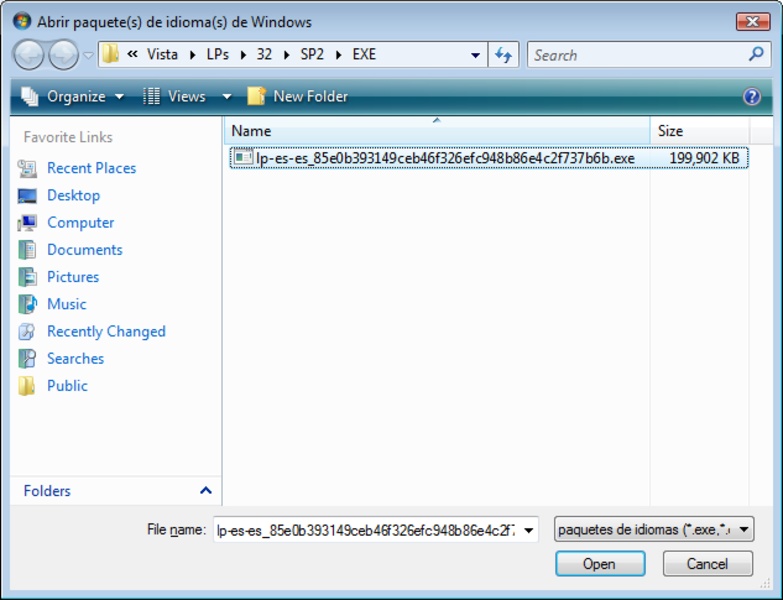
Add a downloaded language pack via “Add Languages”. (How-To Geek)
Install that language pack — in many cases the installation takes only a few minutes (especially in “Express mode”). (How-To Geek)
Select the new language as your display language (menus, dialogs, system UI, etc.) and then reboot so changes take effect. (How-To Geek)
Remove or switch languages later, if desired. (My Digital Life)
It supports both 32‑bit and 64‑bit editions of Windows Vista and Windows 7. (My Digital Life)
✅ What It’s Good For (When It’s Useful)
If you have a Windows 7 or Vista system whose UI is in a language you don’t prefer (for example English), and you want to switch to your native language (e.g. Arabic) without reinstalling Windows — Vistalizator makes that easy.
It’s also useful when you have one of the “non‑Ultimate” editions (Home, Starter, Basic, etc.) that normally do not allow changing the display language.
Because it’s portable and lightweight, you can try it without committing much — good for older PCs, or when you don’t want to install heavy utilities.
Great for multilingual users, people who share a PC, or anyone who needs the system interface in a different language than default.
⚠️ Limitations and What to Know / Watch Out For
Vistalizator does not include the language packs themselves — you must separately download the correct language pack (matching your Windows version and architecture) from an official or trustworthy source. (How-To Geek)
Because this effectively bypasses Microsoft’s built‑in limitations, sometimes after installing language packs with Vistalizator, things like Windows Update or system validation/activation may behave differently or even produce warnings (some users have reported issues with authenticity or updates). (My Digital Life)
The tool is intended for older Windows versions (Vista / 7). It may not work, or may be unnecessary, on newer Windows versions (e.g. Windows 10/11) where language switching is more flexible. (LO4D.com)
🧑💻 Who It’s Good For (Given Your Background)
Since you seem to use a PC and care about customizing or using your computer comfortably:
If your Windows is in English or another language and you prefer Arabic (or another language) — Vistalizator lets you “localize” your system without reinstalling.
If you use older Windows versions (Vista or 7), or you rescue/maintain older PCs — it offers a simple, quick way to add language support.
Useful for sharing the PC with others who prefer a different language, or if you occasionally need to switch the system language for different tasks/users.
Here’s a description of the computer application / game Typer Shark Deluxe — what it is, how it works, and what you can expect when you play it.
🎯 What is Typer Shark Deluxe
Typer Shark Deluxe is a typing‑based computer game developed and published by PopCap Games, Inc.. (Steam Store)
It’s classified as both an educational (typing tutor) and casual/action game: you improve typing skills, but through a fun underwater adventure instead of boring drills. (RapidTyping)
🎮 Gameplay & Mechanics
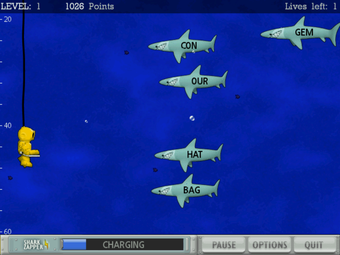
In Typer Shark Deluxe you play as a diver exploring the depths of the ocean. As you descend, you encounter sharks, piranhas, and other sea creatures — each enemy displays a word or a set of letters on them. To “zap” (defeat) them before they reach you, you must type those words/letters quickly and correctly. (MobyGames)
There are different modes:
Typing Tutor Mode: A training mode focused on improving your typing skills. It offers lessons (from basic letter/word typing to sentences), displays a keyboard and fingering guide, and tracks your typing speed (WPM), accuracy, and errors — useful if you want to learn or practice “touch typing.” (UNY Journal)
Adventure Mode: The story‑like mode where you dive across different levels/areas (oceans), face waves of creatures, and gradually increase difficulty. Progress unlocks new challenges and stronger enemies. (LaunchBox Games Database)
Abyss Mode: An endless, survival‑style mode. Here the game gets progressively harder — the deeper you go, the tougher and faster the enemies become. Boss fights appear occasionally. Good mode for experienced typists seeking a challenge. (LaunchBox Games Database)
There’s also a “power‑up” feature: a “Shark Zapper” that charges over time; when full you can trigger it to wipe out a wave of enemies if you’re overwhelmed. (LaunchBox Games Database)
✅ What It Offers — Strengths & Appeal
Fun & engaging approach to typing practice: Rather than boring drills, typing is woven into an adventurous, fast‑paced underwater game. This makes it more fun, motivating especially for younger or casual players. (CCM)
Variety of modes for different skill levels: Whether you’re a beginner needing a tutor mode or a fast typist seeking a challenge in Abyss mode, the game adjusts to your level. (UNY Journal)
Tracking and feedback: The tutor and in‑game stats let you measure typing speed and accuracy over time — a useful tool if your goal is to actually improve typing proficiency, not just play a game. (UNY Journal)
Accessible and lightweight: The game runs on older Windows systems and doesn’t demand heavy hardware — which made it popular back in its time. (Steam Store)
⚠️ Some Limitations / What to Know
Graphics and overall presentation are relatively simple / old‑school (2D) — it’s not a modern, high‑fidelity game. (CCM)
As far as I know, it’s mainly designed for solo play — there’s no built‑in online multiplayer or modern online features. (Typer Shark Deluxe)
Because it’s an older game, support and updates are very limited (especially for modern OSes). It may require compatibility tweaks depending on your computer. (Steam Store)
🧑💻 Who Is It Good For
People who want to improve typing speed and accuracy but dislike traditional typing drills.
Gamers who enjoy a casual, lighthearted game with a bit of challenge and whimsy (underwater sharks + typing = fun).
Those who grew up in the early 2000s and appreciate nostalgic games with simple graphics and straightforward gameplay.
Anyone with a low‑to‑mid spec PC (even older Windows) — the requirements are minimal.
Here is a clear and concise description of Tux Typing:
Tux Typing – Application Description
Tux Typing is a free, educational typing tutor game designed for children. Featuring the Linux mascot, Tux the penguin, the software helps users learn proper typing skills through fun and interactive games.
It offers exercises and typing challenges that improve speed and accuracy while keeping learning engaging and entertaining. Tux Typing supports multiple difficulty levels and keyboard layouts.
Key features include:
Fun and educational typing games for children
Improves typing speed and accuracy
Multiple difficulty levels for beginners to advanced users
Supports various keyboard layouts
Engaging graphics and interactive gameplay
Tux Typing is ideal for kids and beginners who want to develop typing skills in an enjoyable and interactive way.
Here is a clear and concise description of TypeFaster:
TypeFaster – Application Description
TypeFaster is a free typing tutor software designed to help users improve their typing speed and accuracy. It provides structured lessons, typing drills, and real-time feedback to guide learners from beginners to advanced typists.
The program includes a variety of exercises, customizable lessons, and multilingual support, making it suitable for users of all ages and skill levels.
Key features include:
Interactive typing lessons and drills
Real-time feedback on speed and accuracy
Customizable exercises and lesson plans
Support for multiple languages and keyboard layouts
Lightweight and easy to use
TypeFaster is ideal for students, professionals, and anyone looking to improve their typing skills efficiently.